- download the patch from here.
- follow these instructions :
- cd /usr/lib/vmware/modules/source
- cp vmnet.tar vmnet.tar.orig
- tar xvpf vmnet.tar
- zcat yourdownloaddir/patch-vmnet-for-linux-2.6.22.1.gz | patch -p4
- rm vmnet.tar; tar cvf vmnet.tar vmnet-only
- run /usr/bin/vmware-config.pl again. Now, I can configure my vmware network modul on vmware player clearly.

Showing posts with label linux. Show all posts
Showing posts with label linux. Show all posts
Sunday, August 05, 2007
Fixing vmware-config on FC7
I just want to share about vmware-config (vmware player) error fixing when I tried to run it on my FC7 with kernel 2.6.22.1-41. This discussion is very helpful for me. I just want to rewrite again in my blog, so if I forget about this, I can just visit this my note.


Wednesday, July 25, 2007
Language Translator Application
Altough this application is the old one (now with a good service), but this very helpful for me. I use gnome-translate that is created by Jean-Yves Lefort. Actually I use this application for make translation for a site from one language to other language. Sometime I use this to translate from English-Indonesia vice versa. Unfortunately, to use this application, we should have a Internet connection directly without proxy (based on my experience). Please visit GNOME Translate web site to get more information and more application from the Author.
Wednesday, July 11, 2007
leech with wget
This afternoon, I tried to make duplication from a http server to my external harddrive using wget. I want to make a note at my blog, so everytime when I forget about the command, this note can help me. Here is my sintax for wget to get all of contents from a directory in a server recursively, including the structure of directories.
wget -rv -l 10 -t0 -I start_of_remote_directory http://host_name
Option -r is used to download all of content recursively. If you want to make more deep for the level of directory, you can specify in the -l option.
There are many ways to do like that, one project that may be appropriate for you is Leech based on PHP. I was used this tools, but I change it only with wget.
In another case, if you have a html file that contain all links that you want to download, you can use this command:
wget -rv --user-agent="you user agent" -i file.html -F
In some cases, some web servers has configured to received only known user agent. For this condition, you can pass most famous user agent, like : "Mozilla/5.0 (X11; U; Linux i686; en-US; rv:1.8.0.10) Gecko/20070510 Fedora/1.5.0.10-6.fc6 Firefox/1.5.0.10".
wget -rv -l 10 -t0 -I start_of_remote_directory http://host_name
Option -r is used to download all of content recursively. If you want to make more deep for the level of directory, you can specify in the -l option.
There are many ways to do like that, one project that may be appropriate for you is Leech based on PHP. I was used this tools, but I change it only with wget.
In another case, if you have a html file that contain all links that you want to download, you can use this command:
wget -rv --user-agent="you user agent" -i file.html -F
In some cases, some web servers has configured to received only known user agent. For this condition, you can pass most famous user agent, like : "Mozilla/5.0 (X11; U; Linux i686; en-US; rv:1.8.0.10) Gecko/20070510 Fedora/1.5.0.10-6.fc6 Firefox/1.5.0.10".
Tuesday, March 27, 2007
updated to fc6
I have been updated my fedora successfully, from FC5 (updated) to FC6. But I had some problems after installation. First, my JDK 6 automatically deinstalled by FC6 update process, and replaced by java-gjc-1.4.2. Second, my MonoDevelop, gambas could not be executed. About this one, I should deinstalled manually, and then installed again. But overall, FC6 is very great. I love fedora...:D
Thursday, October 12, 2006
Synchronize PocketPC and Linux with SynCE
Today I have succeed to configure SynCE on my Fedora Core 5 to make synchronize connection with my iPAQ PocketPC Windows Mobile 2003. For this pratice, I used very usefull information from http://synce.sourceforge.net/ or http://www.linux.com/article.pl?sid=05/08/17/1847227. With SynCE, I can add/remove program, file browsing, check my pda status with SynCE tray icon (see the capture image below).
I am using USB cable to build serial ppp peers connection between pda and linux. At my pocketPC, the ActiveSync program should be run because SynCE already listen and make communication with ActiveSync. This is a very good program, and we can learn many think about serial communication via USB. You should try it.
Here some steps according to synce howto:
as root:
# modprobe ipaq
# synce-serial-config ttyUSB0
as your user session
$ dccm -p passkey
back as root:
# synce-serial-start
Check your Synce Tray Icon, if the icon is active, then your connection is success. If not, please unpluge your usb cable from pda, and then plug it again.
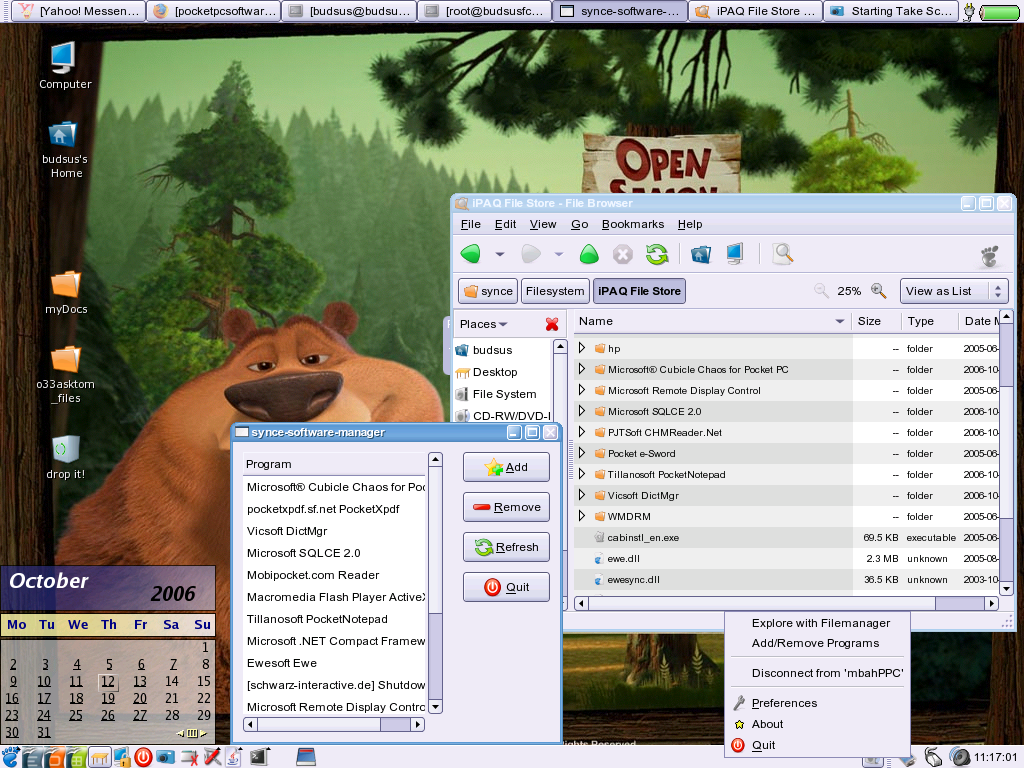
I am using USB cable to build serial ppp peers connection between pda and linux. At my pocketPC, the ActiveSync program should be run because SynCE already listen and make communication with ActiveSync. This is a very good program, and we can learn many think about serial communication via USB. You should try it.
Here some steps according to synce howto:
as root:
# modprobe ipaq
# synce-serial-config ttyUSB0
as your user session
$ dccm -p passkey
back as root:
# synce-serial-start
Check your Synce Tray Icon, if the icon is active, then your connection is success. If not, please unpluge your usb cable from pda, and then plug it again.
Friday, August 11, 2006
gnome-blog-poster
Today, I have tried to use gnome-blog-poster to post a new my diary at my blogger.com. This is a simple program but give very interesting features to post a new message without open browser.
Wednesday, July 19, 2006
Sharing Internet Connection with Firestarter
Today I have configured my FC 5 as router with Firestarter successfully. Firestarter is all-in one Linux firewall utility that make more easier firewall configuration than iptable. Here is what I have done to my FC5 machine. My Linux is part of our intranet and has 2 LAN Cards, one is connected to intranet and the other (eth1) connected to LAN with IP network address 192.168.0.0/24. In that machine, I have already install and running configureable firestarter.
For make more easier firestarter configuration, we can use Firestarter for GNOME which has developed by Tomas Junnonen. With that application, we can configure firewall policy. Here are my policy:
For make more easier firestarter configuration, we can use Firestarter for GNOME which has developed by Tomas Junnonen. With that application, we can configure firewall policy. Here are my policy:
- Inbound traffic policy
- Allow connections from host: 192.168.0.0/24
- Allow service: all of available services with anyone for the source
- Outbound traffic policy
- For restrictive by default
- Allow connections from LAN host: 192.168.0.0/24
- allow service: all of available services
Saturday, June 24, 2006
autofs di fc5
Ini juga baru saya temukan di FC5, yaitu untuk mounting CD/DVD, tidak lagi membaca file /etc/fstab. Sehingga jika pada /etc/fstab masih terdapat definisi mount device CD/DVD, silahkan dihapus saja.
Untuk di komputer saya sendiri, pada FC3 sebelumnya, saya tambahkan definisi mount untuk partisi VFAT windows dengan parameter noauto, dan partisi windows saya selalu ter-mount otomatis ketika saya masuk ke session. Namun hal tersebut tidak terjadi pada FC5, sehingga saya ubah kembali parameter noauto menjadi auto.
Sekarang CD-RW/DVD dan partisi VFAT saya sudah dapat otomatis ter-mount, dan tidak muncul lagi pesan "You don't have permission!" dari GNOME.
Ada catatan yang lain tentang mount untuk fixed disk dari FC5, silahkan baca di dokumentasinya.
Untuk di komputer saya sendiri, pada FC3 sebelumnya, saya tambahkan definisi mount untuk partisi VFAT windows dengan parameter noauto, dan partisi windows saya selalu ter-mount otomatis ketika saya masuk ke session. Namun hal tersebut tidak terjadi pada FC5, sehingga saya ubah kembali parameter noauto menjadi auto.
Sekarang CD-RW/DVD dan partisi VFAT saya sudah dapat otomatis ter-mount, dan tidak muncul lagi pesan "You don't have permission!" dari GNOME.
Ada catatan yang lain tentang mount untuk fixed disk dari FC5, silahkan baca di dokumentasinya.
tentang pirut dan yumex di FC5
Untuk manajemen package RPM di FC5, pada kenyataannya di awal-awal saya kebingungan, karena ternyata dengan program pirut atau yumex mengandalkan informasi repository dari yum (lihat /etc/yum.repos.d). Sehingga ketika saya tidak terkoneksi dengan Internet, kedua aplikasi tersebut "ngambek" atau tidak mau melakukan proses selanjutnya.
Akhirnya saya mencoba cara lain demikian:
Jika diinginkan untuk update dari Internet, beri tanda # di depan baris-baris informasi repo di file /etc/yum.conf tadi, dan ganti kembali nama direktori /etc/yum.repos.d.FC5 menjadi aslinya, yaitu /etc/yum.repos.d.
Jika Anda terhubung ke Internet harus melalui proxy, pada /etc/yum.conf, tambahkan baris parameter berikut :
proxy=http://IPADDRESS_PROXY:PROXY_PORT
Kemudian, jika Anda tidak dapat melakukan koneksi ke Internet setiap saat, lebih baik untuk manajemen paket RPM di FC5 ini, gunakan alternatif package manager lain. Untuk aplikasi ini saya suka dengan Smart Package Manager yang disediakan oleh Labix.
Demikian hasil percobaan saya hari ini.
Akhirnya saya mencoba cara lain demikian:
- rename direktori /etc/yum.repos.d. Misalnya demikian:
mv /etc/yum.repos.d /etc/yum.repos.d.FC5 - lalu buka file /etc/yum.conf dengan program editor, dan tambahkan baris-baris berikut di baris paling bawah :
[fc5-extras-dvd]
name=Fedora Core $releasever - $basearch
baseurl=file:///media/cdrecorder/IL-062006/extras/fedoracore-5/
enabled=1
gpgcheck=0
[fc5-update-dvd]
name=Fedora Core $releasever - $baseearch
baseurl=file:///media/cdrecorder/IL-062006/update/fedoracore-5/
enabled=1
gpgcheck=0
kedua direktori extras dan updates menunjuk ke DVD yang berisi repos dan rpm daripaket-paket fedora core 5 extras dan update (DVD saya dapatkan dari salah satu majalan Linux di Indonesia). - Lalu jalankan program pirut atau yumex.
Jika diinginkan untuk update dari Internet, beri tanda # di depan baris-baris informasi repo di file /etc/yum.conf tadi, dan ganti kembali nama direktori /etc/yum.repos.d.FC5 menjadi aslinya, yaitu /etc/yum.repos.d.
Jika Anda terhubung ke Internet harus melalui proxy, pada /etc/yum.conf, tambahkan baris parameter berikut :
proxy=http://IPADDRESS_PROXY:PROXY_PORT
Kemudian, jika Anda tidak dapat melakukan koneksi ke Internet setiap saat, lebih baik untuk manajemen paket RPM di FC5 ini, gunakan alternatif package manager lain. Untuk aplikasi ini saya suka dengan Smart Package Manager yang disediakan oleh Labix.
Demikian hasil percobaan saya hari ini.
Friday, June 23, 2006
Upgrade to FC5
Hari ini saya melakukan upgrade dari FC3 ke FC5 di mesin Compaq Presario V1000. Proses upgrade tidak menemui kendala apapun, kecuali saya harus menyediakan ruang penyimpanan yang cukup, sekitar 3 GB untuk proses upgrade ini.
Setelah berhasil boot ke FC5, ada beberapa kendala yang saya temui. Namun beruntung sekali ada Santon Finley yang bekenan berbagi pengalaman instalasi FC5nya.
Setelah berhasil boot ke FC5, ada beberapa kendala yang saya temui. Namun beruntung sekali ada Santon Finley yang bekenan berbagi pengalaman instalasi FC5nya.
Tuesday, May 30, 2006
Bluetooth di Fedora Core 3
Sedikit tentang bluetooth
Bluetooth (http://www.bluetooth.com) adalah suatu standar spesifikasi yang mendefinisikan bagaimana telepon bergerak, komputer dan personal digital assistant (PDA) dapat dengan mudah terinterkoneksi satu dengan lainnya dengan koneksi tanpa kabel.
Sebuah perangkat bluetooth membutuhkan suatu chip tranceiver, yang masing-masing memiliki alamat fisik sepanjang 48 bit. Transceiver akan melakukan pengiriman dan penerimaan data/suara pada band frekuensi ISM (Industrial, Science, Medical) 2.4 GHz.
Asal muasal ide ini diprakarsai oleh Ericsson pada tahun 1994, yang melihat ketidak-efisiensian dalam komunikasi antara handphone dengan PDA.
Karena dipandang baik, tahun 1998, antara Ericsson, IBM, Nokia, dan Toshiba, membentuk Bluetooth Special Interest Group (SIG).
Nama Bluetooth sebenarnya diambil dari nama raja Viking, Harald Blaatand (Bluetooth) II, yang berhasil menyatukan Denmark dan Norwegia, juga dengan "tanpa kabel" :).
Bluetooth di Linux
Untuk dapat mendukung bluetooth, kernel GNU/Linux harus juga mengenal protokol bluetooth.
Ada beberapa module/driver protokol bluetooth yang dapat kita pasangkan untuk kernel GNU/Linux, antara lain :
# rpm -qa | grep bluez
bluez-hcidump-1.11-1
bluez-utils-2.10-2
bluez-libs-2.10-2
bluez-pin-0.23-3
bluez-bluefw-1.0-6
Berikutnya, Anda dapat memeriksa apakah perangkat bluetooth yang terpasang pada port USB sudah dikenal kernel GNU/Linux atau belum, dengan menggunakan perintah berikut (loginlah sebagai root):
# lsmod | grep bluetooth
contoh hasilnya adalah:
# lsmod | grep bluetooth
bluetooth 46917 7 rfcomm,l2cap,hci_usb
Tugas kernel untuk menyediakan kebutuhan driver dan protokol bluetooth sudah cukup, selanjutnya kita membutuhkan suatu daemon yang membantu mengontrol pemakaian perangkat bluetooth.
Modul hci_usb adalah perangkat usb bluetooth kita, l2cap adalah protokol lapisan data link, dan rfcomm adalah protokol lapisan middleware dari arsitektur protokol bluetooth.
Sehingga dengan demikian keseluruhan lapisan inti protokol bluetooth sudah terpenuhi. Pada beberapa distro lain, nama modul mungkin tetap bluez, bukan bluetooth seperti di atas.
Pada FC3 sudah tersedia script di /etc/init.d/bluetooth, yang akan menjalankan paling tidak dua daemon, yaitu
hciconfig -a
Memanfaatkan Modem Bluetooth pada ponsel
Untuk meminta layanan DUN ini, kita harus mengatur parameter hcid yang tersimpan di /etc/bluetooth/hcid.conf.
 Mencoba DUN
# minicom -s
<enter><enter>
<pilih menu serial port setup>
<tekan a>
<ubah serial device manjadi >
<enter>
<enter>
<pilih menu exit>
<ada proses inisialisasi modem>
AT S7=45 S0=0 L1 V1 X4 &c1 E1 Q0
OK
ATDTno_telp_yg_ingin_dicall
<contoh: atdt021238xxx>
<jika telp yg dituju berdering berarti modem ok>
<tekan ax lalu jawab yes>
edit file /etc/wvdial.conf, dan tambahkan contoh definisi koneksi PPP berikut
[Modem0]
Modem = /dev/rfcomm0
Baud = 57600
SetVolume = 0
Dial Command = ATDT
Init1 = ATZ
Init3 = ATM0
FlowControl = CRTSCTS
[Dialer IM3]
Username = gprs
Password = im3
Phone = *99#
Stupid Mode = 1
Init1 = ATZ
Init2 = ATQ0 V1 E1 S0=0 &C1 &D2 +FCLASS=0
Init3 = AT+CGDCONT=1,"IP","www.indosat-m3.net","",0,0
Inherits = Modem0
Mencoba DUN
bemused
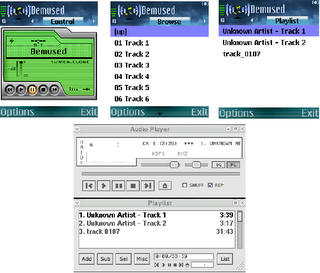
bemused merupakan program yang memberikan layanan kontrol sederhana terhadap xmms melalui ponsel. Silahkan mengunjungi: http://bemused.sourceforge.net
OBEX di gnome
Untuk penerapan OBEX di gnome secara umum sangat mudah untuk diterapkan.
Aplikasi :
gnokii
Gnokii merupakan driver modem/fax untuk perangkat ponsel. gnokii sejak awal dirancang untuk perangkat Nokia
gnokii-0.6.4-1.1.fc3.rf
gnokii-gui-0.6.4-1.1.fc3.rf
gnokii-devel-0.6.4-1.1.fc3.rf
port = 00:0E:6D:FB:48:8A # bth addr ponsel
rfcomm_channel = 13 # channel dari gnapplet
model = series60 # model S60
connection = bluetooth
serial_baudrate = 19200
[gnokiid]
bindir = /usr/sbin

Bluetooth (http://www.bluetooth.com) adalah suatu standar spesifikasi yang mendefinisikan bagaimana telepon bergerak, komputer dan personal digital assistant (PDA) dapat dengan mudah terinterkoneksi satu dengan lainnya dengan koneksi tanpa kabel.
Sebuah perangkat bluetooth membutuhkan suatu chip tranceiver, yang masing-masing memiliki alamat fisik sepanjang 48 bit. Transceiver akan melakukan pengiriman dan penerimaan data/suara pada band frekuensi ISM (Industrial, Science, Medical) 2.4 GHz.
Asal muasal ide ini diprakarsai oleh Ericsson pada tahun 1994, yang melihat ketidak-efisiensian dalam komunikasi antara handphone dengan PDA.
Karena dipandang baik, tahun 1998, antara Ericsson, IBM, Nokia, dan Toshiba, membentuk Bluetooth Special Interest Group (SIG).
Nama Bluetooth sebenarnya diambil dari nama raja Viking, Harald Blaatand (Bluetooth) II, yang berhasil menyatukan Denmark dan Norwegia, juga dengan "tanpa kabel" :).
Bluetooth di Linux
Untuk dapat mendukung bluetooth, kernel GNU/Linux harus juga mengenal protokol bluetooth.
Ada beberapa module/driver protokol bluetooth yang dapat kita pasangkan untuk kernel GNU/Linux, antara lain :
- OpenBT (http://developer.axis.com/software/bluetooth/),
- BlueZ (http://bluez.sourceforge.net/),
- BlueDrekar (http://www.alphaWorks.ibm.com/tech/bluedrekar).
# rpm -qa | grep bluez
bluez-hcidump-1.11-1
bluez-utils-2.10-2
bluez-libs-2.10-2
bluez-pin-0.23-3
bluez-bluefw-1.0-6
Berikutnya, Anda dapat memeriksa apakah perangkat bluetooth yang terpasang pada port USB sudah dikenal kernel GNU/Linux atau belum, dengan menggunakan perintah berikut (loginlah sebagai root):
# lsmod | grep bluetooth
contoh hasilnya adalah:
# lsmod | grep bluetooth
bluetooth 46917 7 rfcomm,l2cap,hci_usb
Tugas kernel untuk menyediakan kebutuhan driver dan protokol bluetooth sudah cukup, selanjutnya kita membutuhkan suatu daemon yang membantu mengontrol pemakaian perangkat bluetooth.
Modul hci_usb adalah perangkat usb bluetooth kita, l2cap adalah protokol lapisan data link, dan rfcomm adalah protokol lapisan middleware dari arsitektur protokol bluetooth.
Sehingga dengan demikian keseluruhan lapisan inti protokol bluetooth sudah terpenuhi. Pada beberapa distro lain, nama modul mungkin tetap bluez, bukan bluetooth seperti di atas.
Pada FC3 sudah tersedia script di /etc/init.d/bluetooth, yang akan menjalankan paling tidak dua daemon, yaitu
- hcid (Bluetooth Host Controller Interface Daemon)
- sdpd (memungkinkan perangkat bluetooth untuk terkoneksi dengan perangkat bluetooth lain).
hciconfig -a
Memanfaatkan Modem Bluetooth pada ponsel
Untuk meminta layanan DUN ini, kita harus mengatur parameter hcid yang tersimpan di /etc/bluetooth/hcid.conf.
- security auto;
- maksudnya, pin untuk koneksi akan otomatis berdasar pin lokal di /etc/bluetooth/pin. Buat dengan:
- # echo “12345” > /etc/bluetooth/pin
- security user;
- pin_helper /usr/bin/bluez-pin;
- jika Anda ingin agar pemakai selalu memasukkan pin ketika ada konfirmasi otentikasi
- Aktifkan layanan bluetooth di ponsel Anda
- Pada console, ketikkan: (*#2820#)
- Cobalah melakukan ping dengan protokol l2cap :
- selanjutnya kita akan membuat koneksi untuk protokol rfcomm :
 Mencoba DUN
# minicom -s
<enter><enter>
<pilih menu serial port setup>
<tekan a>
<ubah serial device manjadi >
<enter>
<enter>
<pilih menu exit>
<ada proses inisialisasi modem>
AT S7=45 S0=0 L1 V1 X4 &c1 E1 Q0
OK
ATDTno_telp_yg_ingin_dicall
<contoh: atdt021238xxx>
<jika telp yg dituju berdering berarti modem ok>
<tekan ax lalu jawab yes>
edit file /etc/wvdial.conf, dan tambahkan contoh definisi koneksi PPP berikut
[Modem0]
Modem = /dev/rfcomm0
Baud = 57600
SetVolume = 0
Dial Command = ATDT
Init1 = ATZ
Init3 = ATM0
FlowControl = CRTSCTS
[Dialer IM3]
Username = gprs
Password = im3
Phone = *99#
Stupid Mode = 1
Init1 = ATZ
Init2 = ATQ0 V1 E1 S0=0 &C1 &D2 +FCLASS=0
Init3 = AT+CGDCONT=1,"IP","www.indosat-m3.net","",0,0
Inherits = Modem0
Mencoba DUN
- Coba lakukan dialup:
- Jika sudah tersambung, pada ponsel Anda, icon GPRS akan aktif. Selanjutnya, selamat menikmati Internet
- Anda dapat memutus koneksi dengan cara menghentikan wvdial. Misal, pada console dimana wvdial aktif, silahkan tekan CTRL-C.
- lakukan release rfcomm dengan cara :
bemused
bemused merupakan program yang memberikan layanan kontrol sederhana terhadap xmms melalui ponsel. Silahkan mengunjungi: http://bemused.sourceforge.net
- Download bemused Symbian60, dan install ke ponsel Anda.
- Download bemused server for Linux
- Ekstrak bemusedlinuxserver1.73.tar.gz
- Konfigurasi besumed dari file bemused.conf
- Copy file bemused.conf ke /etc
- Buat rfcomm2:
- Jalankan bemusedlinuxserver

OBEX di gnome
Untuk penerapan OBEX di gnome secara umum sangat mudah untuk diterapkan.
Aplikasi :
- gnome-obex-server dan gnome-bluetooth-manager
gnokii
Gnokii merupakan driver modem/fax untuk perangkat ponsel. gnokii sejak awal dirancang untuk perangkat Nokia
- Seri 6100 (6110/5110), seri 7110 (7110/6210) , dan seri 6510 (6310/6510).
- Nokia 7110/6210/6250/6310(i)/6510/8210/9210/7650/3650,
- Siemens S25/SL45i/C55/M55/S55,
- Ericsson T39, SonyEricsson T68i,
- Bosch 908/909
- Motorola Timeport P7389i and C350.
- gnokiid: membuat suatu modem virtual untuk ponsel Nokia portable. Akan dibuat file /dev/gnokii secara otomatis oleh mgnokiidev ketika gnokiid dijalankan. Dengan file tersebut kita dapat mengkonfigurasi PPP untuk dialup dengan memanfaatkan ponsel.
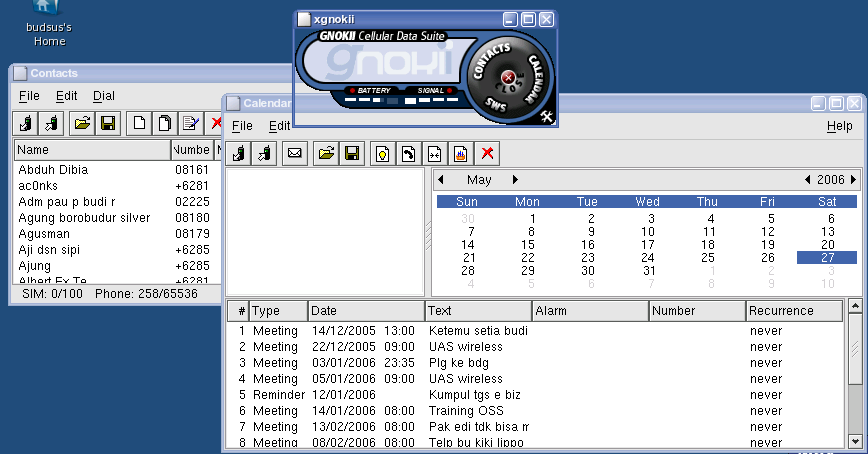
- gnokii / xgnokii. xgnokii merupakan user interface untuk gnokii yang memberikan fasilitas untuk sms, contact dan calendar
gnokii-0.6.4-1.1.fc3.rf
gnokii-gui-0.6.4-1.1.fc3.rf
gnokii-devel-0.6.4-1.1.fc3.rf
- Setelah instalasi, install gnapplet.sis ke ponsel Anda yang telah disediakan di /usr/share/doc/gnokii-0.6.4/
- Buat file /etc/gnokiirc, yang berisi:
port = 00:0E:6D:FB:48:8A # bth addr ponsel
rfcomm_channel = 13 # channel dari gnapplet
model = series60 # model S60
connection = bluetooth
serial_baudrate = 19200
[gnokiid]
bindir = /usr/sbin
- program xgnokii akan muncul pada menu FootGnome > Accessories > Gnokii Mobile Manager
- sebelum menjalankan program xgnokii, jalankan dulu gnapplet pada ponsel Anda, kemudian sebelum 30 detik waktu tunggu dari gnapplet habis, segeralah jalankan xgnokii.
Tuesday, March 28, 2006
Router Installation for RedHat 9
This is about my little experience when I was setup our faculty's computer as router with RedHat 9 (Linux 2.4.20-8/gcc 3.2.2). This work was done at March 2004. Why I want to write this old thing at here? I want to make a little documention about my 'old' experience so I can always read it again and remember what I have done. :D
The specification of the computer is Intel Pentium 4 2,6 GHz, RAM 1 GByte, HD 40 GByte. Here are some services that already run well on our faculty:
Here are the wins server and wins proxy configuration. With this configuration, from 192.168.3.0/24 network can explore all of microsoft file sharing services in 192.168.1.0/24 network.
For Firewall setting, here are some configuration (iptable rules) that I have implemented :
The specification of the computer is Intel Pentium 4 2,6 GHz, RAM 1 GByte, HD 40 GByte. Here are some services that already run well on our faculty:
- as router that connected between two networks, ie. engineering faculty network (192.168.3.0/24) and university network (192.168.1.0/24)
as firewall (I use iptables and masquerading). I was configured this computer to deny all of ICMP requests from outside 192.168.3.0
as file sharing with Samba
as many services provider MySQL, PostgreSQL, FTP, Apache, etc.
Here are the wins server and wins proxy configuration. With this configuration, from 192.168.3.0/24 network can explore all of microsoft file sharing services in 192.168.1.0/24 network.
- in the /etc/samba/smb.conf file, at global section I have configured like this:
[global]The important parameter is 'wins support' that enable SAMBA can ack as WINS SERVER. We have tested that configuration in our network. Here are some steps that we have tried:
workgroup = teknik
server string = samba teknikrh9 server
hosts allow = 192.168.1. 192.168.3. 127.
printcap name = /etc/printcap
load printers = yes
printing = cups
log file = /var/log/samba/%m.log
max log size = 1000
lanman auth = no
netbios name = teknikrh9
encrypt passwords = yes
unix password sync = Yes
passwd program = /usr/bin/passwd %u
socket options = IPTOS_LOWDELAY TCP_NODELAY SO_RCVBUF=8192 SO_SNDBUF=8192
interfaces = 192.168.1.37/24 192.168.3.1/24
local master = no
security = user
syslog only = no
syslog = 0
name resolve order = lmhosts host wins bcast
time server = yes
os level = 34
wins support = yes
guest account = nobody
invalid users = root
username map = /etc/samba/smbusers
dns proxy = no
preserve case = yes
short preserve case = yes
- create a file and save as as lmhost and place it at windows or WINNT directory. Here are the sample:
192.168.3.1 teknikrh9
192.168.1.224 xxxxxx (<- nama komputer yang akan diakses) - then right click My Network Place icon at desktop, choose Properties menu
- right click Local Area Connection icon and choose Properties menu
- click Internet Protocol (TCP/IP) item and then click Properties button
- windows will show you a TCP/IP Properties dialog. Click Advanced... button
- click WINS tab, then click Add button to add WINS server
- enter the IP address of computer router (RH9), ie. 192.168.3.1 or 192.168.1.37
- then click Add button
- please ensure that "Enable LMHOSTS lookup" checkbox is active
- click "Import LMHOSTS" button
- choose the lmhost file from windows or WINNT directory
- please check for "Enable NetBIOS over TCP/IP" checkbox
- then click OK button, OK button, OK button... :D
- try to search a computer that you have write it at lmhost file
For Firewall setting, here are some configuration (iptable rules) that I have implemented :
-
/etc/sysctl.conf
change the value of parameter below with 1net.ipv4.ip_forward = 1
- Add some iptables command at /etc/init.d/network file :
# ini untuk mendefinisikan masquerading forwading dari internet ke 192.168.1.0/24
iptables -A POSTROUTING -j MASQUERADE -t nat -s 192.168.3.0/24 -o eth0

# khusus untuk port 20 (FTP control) di definisikan untuk diterima
iptables -A INPUT -p tcp --sport 20 -m state --state ESTABLISHED,RELATED -j ACCEPT

iptables -A OUTPUT -p tcp --dport 20 -m state --state ESTABLISHED -j ACCEPT

# modul kernel ini dipanggil untuk menangani forwarding dari port data FTP
/sbin/insmod ip_conntrack_ftp
/sbin/insmod ip_nat_ftp
Subscribe to:
Posts (Atom)